





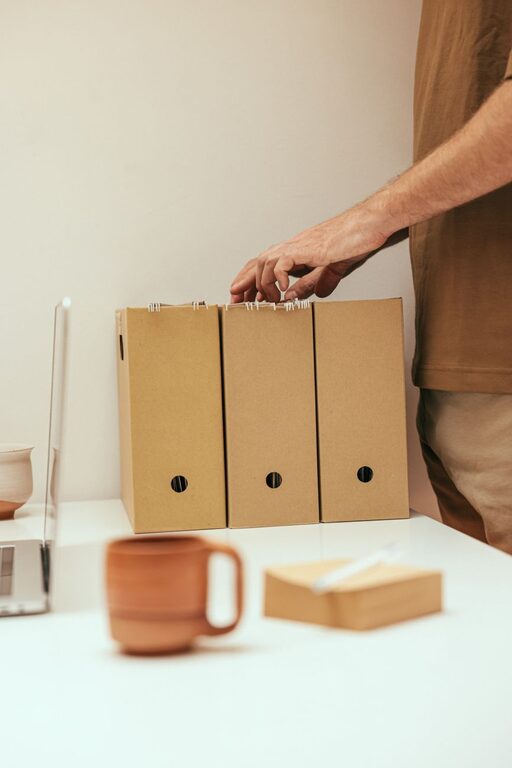
Keeping your computer organized can save you time and reduce frustration when you need to find important files. Whether you work from home, attend school online, or just use your computer for personal tasks, having a clear system for managing your files helps improve productivity and keeps your digital space tidy. In this post, we’ll explore practical tips to help you organize your files efficiently.
Why Organizing Files Matters
When files are scattered all over your desktop or saved with vague names, it can take minutes—or even longer—to locate what you need. Over time, unorganized files can slow down your workflow and clutter your computer’s storage.
By creating a simple file organization method, you can:
– Save time searching for documents, photos, and other files
– Reduce duplicated files and unnecessary clutter
– Protect important data by backing up organized folders
– Improve your computer’s performance by managing storage better
Getting Started: Assess Your Current Files
Before creating a system, take a moment to look at what you have. Here’s a quick checklist to get started:
- Open your main folders like Documents, Downloads, and Desktop.
- Note what types of files you have (work, personal, photos, music, etc.).
- Identify large files or duplicates that can be deleted or moved.
- Decide if you want to reorganize everything at once or in stages.
Create a Logical Folder Structure
A good folder structure is the foundation of organized files. Follow these steps to build one:
1. Use Broad Categories
Start with broad, meaningful folder names that cover the main areas of your files. For example:
– Work
– Personal
– Photos
– Finance
– School
2. Add Subfolders
Within each main folder, create subfolders to further categorize your files. For instance, under “Work,” you might have:
– Projects
– Reports
– Meeting Notes
This system helps you find files quickly and keeps related documents together.
3. Keep Folder Names Simple and Consistent
Use clear names without special characters or spaces. For example, use “Meeting_Notes” or “Project_Reports” instead of complicated names. Consistency helps you remember where things go.
Naming Files Effectively
File names are key to finding what you need without opening multiple files. Here are some tips:
– Use dates in your file names for version control (e.g., “Report_2024-06-20”).
– Include descriptive words to identify the contents (e.g., “Vacation_Photos_Paris”).
– Avoid vague names like “Document1” or “Untitled.”
– Use underscores or hyphens instead of spaces to avoid compatibility issues.
Regular Maintenance and Cleanup
Organizing files isn’t a one-time task. Set aside time weekly or monthly to:
– Delete files you no longer need.
– Move files from the Downloads folder to their proper locations.
– Back up important files to an external drive or cloud storage.
– Review your folder structure and adjust if needed.
Take Advantage of Computer Tools
Many operating systems offer built-in tools to help with file organization:
Search Features
Use the search bar to find files by name or content instead of browsing through folders.
Tags and Labels
Some systems allow tagging files with keywords or colors. This can help group files across different folders.
Cloud Storage Integration
Services like Google Drive, Dropbox, or OneDrive provide options to organize and access files from anywhere while keeping your computer clutter-free.
Tips for Managing Downloads and Desktop
The Desktop and Downloads folders tend to accumulate clutter quickly. Here’s how to keep them clean:
– Make it a habit to move important downloaded files immediately to their proper folders.
– Avoid saving too many files on the Desktop; use it for temporary or urgent items only.
– Use folders within the Downloads directory for different file types like installers, documents, or images.
Back Up Your Organized Files
Once you’ve set up your system, backing up files is vital. Regular backups protect your data from accidental loss due to hardware failure or other issues.
Options include:
– External hard drives
– Cloud backup services
– Network-attached storage devices
Choose a backup method that fits your needs and schedule automatic backups if possible.
Final Thoughts
Organizing your computer files doesn’t need to be complicated. By creating a clear folder structure, naming files thoughtfully, and maintaining your system regularly, you’ll save time and reduce stress in the long run. Start small, and build your organization habits one step at a time. Your future self will thank you!




More Stories